
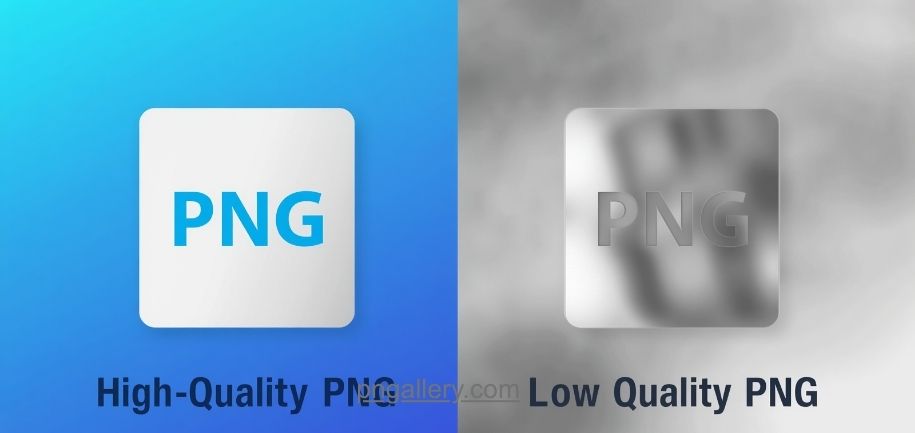
PNG files are common. You see them on websites. You see them in apps. You see them in design tools. Not all PNGs are the same. Some look sharp. Others look blurry. Quality makes the difference.
At PNGallery, we use PNG files every day. We know what makes a PNG good. We know what makes a PNG bad. This guide will show you the difference.
What Is a PNG File?
PNG means Portable Network Graphics. It is an image format. PNG supports clear backgrounds. It supports sharp edges. It supports crisp text. Designers use it a lot.
PNG uses lossless compression. The image does not lose data. The file size can be large. But the image stays sharp.
What Makes a PNG High Quality?
A high-quality PNG has key features. Here they are.
High Resolution A high-quality PNG has many pixels. More pixels mean more detail. The image stays sharp when you zoom in. It prints well at large sizes too.
Clean Edges PNG supports clear backgrounds. A high-quality PNG has smooth edges. There are no rough borders. There are no halos. This matters for logos and icons.
Accurate Colors High-quality PNGs show true colors. The colors look the same on all screens. They do not look dull. They do not look too bright.
No Damage A high-quality PNG has no visible flaws. The image looks natural. You will not see blocks or color spots.
Good Color Depth Color depth means how many colors the image can show. A 24-bit PNG can show over 16 million colors. This gives smooth gradients and rich detail.
What Makes a PNG Low Quality?
Low-quality PNGs have the opposite traits. Here is what to look for.
Low Resolution A low-quality PNG has few pixels. The image looks soft. It looks blurry. When you zoom in, it falls apart. You can see pixel squares.
Rough Edges Low-quality PNGs have rough edges. This happens when a PNG is resized the wrong way. The edges look bad.
Wrong Color Depth Some low-quality PNGs use 8-bit color. This limits the colors. You may see color bands. The image looks flat.
Stretch Damage A small image stretched to a large size looks bad. The result looks blurry. It looks soft.
Too Much Compression Some tools shrink PNG files too much. This hurts quality. The image looks off.
High-Quality PNG vs Low-Quality PNG: Quick Comparison
| Feature | High-Quality PNG | Low-Quality PNG |
|---|---|---|
| Resolution | High (300+ DPI for print) | Low (72 DPI or less) |
| Edges | Smooth and clean | Rough or blurry |
| Color Depth | 24-bit or 32-bit | 8-bit or less |
| File Size | Larger | Smaller |
| Background | Clean and clear | Rough or missing |
| Zoom | Stays sharp | Falls apart |
| Best For | Pro design, print | Low-res web use |
Why Does PNG Quality Matter?
PNG quality affects your brand. A bad PNG makes your logo look poor. It can push users away from your site.
Google cares about image quality too. Bad images hurt user experience. That can drop your rankings.
For print, PNG quality is key. A low-res PNG looks bad when printed. You need at least 300 DPI for sharp prints.
On websites, quality and speed must work together. A large PNG can slow your site. You need to shrink the file without hurting the look.
How to Check PNG Quality
You can check PNG quality in a few ways.
Zoom In Open the image. Zoom to 100%. Look at the edges. Look at the details. A good PNG stays sharp. A bad PNG looks blurry or blocky.
Check the Size Right-click the file. View its info. Check the pixel size. A 200×200 PNG is too small for most uses. A 1000×1000 PNG works better.
Look at the File Size A very small file can mean too much compression. Compare the file size to the image size. A very low file size is a bad sign.
Use Image Tools Tools like Photoshop or GIMP show all image data. You can check color depth, DPI, and background info in the panel.
How to Get High-Quality PNGs
Here are simple ways to get high-quality PNGs.
Download from Good Sources Use trusted sites like PNGallery for free PNG files. Every PNG on our site is clean and sharp. You will not find blurry files here.
Export at the Right Size When you make PNGs, export at the right size. Do not scale a small image up. Start large. Scale down if you need to.
Use the Right Settings When you save a PNG, pick 24-bit or 32-bit color. Use 72 DPI for web. Use 300 DPI for print.
Save the Source File Save your source file. Export a copy each time. This keeps the original safe.
Use PNG Tools Tools like TinyPNG shrink file size without hurting quality. They strip hidden data. The image looks the same but loads fast.
When to Use High-Quality PNGs
Use high-quality PNGs for these tasks:
- Logo design — Logos need clean edges and clear backgrounds.
- Web graphics — Icons, buttons, and banners need sharp PNG.
- Print jobs — Use high-res PNGs for all print work.
- Social media — Profile images and posts need to look clear.
- Slides — Sharp visuals make slides look pro.When Low-Quality PNGs Cause Problems
Low-quality PNGs cause real harm. Here are some cases.
A blurry logo looks bad. Users may not trust your brand. A pixelated product image hurts sales. Buyers want to see clear details.
In print, a bad PNG looks terrible. It can look washed out or broken. This hurts your image.
On social media, bad images get ignored. Users skip past blurry posts. Sharp images get more clicks and views.
Conclusion
The gap between high-quality and low-quality PNG is clear. High-quality PNGs are sharp, clean, and color-rich. Low-quality PNGs are blurry, rough, and dull. Quality shapes how your brand looks. It shapes how your site runs. It shapes how people react to your work.
Use high-quality PNG files for all pro work. Check the resolution. Check the color depth. Check the edges. Need free, clean PNG files? Visit PNGallery. Every file is sharp and web-ready.
Pick quality. Your users will see it.
Frequently Asked Questions (FAQs)
1. What is the difference between high-quality and low-quality PNG?
A high-quality PNG has more pixels, clean edges, and true colors. A low-quality PNG looks blurry or rough when you zoom in.
2. Does PNG lose quality when saved?
PNG is lossless. It does not lose quality when saved right. Bad export settings can still hurt it.
3. What resolution should a PNG be for web use?
Use 72 DPI for web. Use 300 DPI for print. Match the DPI to the job.
4. How do I fix a low-quality PNG?
You cannot get back lost pixels. Find or make a high-res version. AI tools can help but results vary.
5. Where can I find free high-quality PNG files?
Get free, sharp PNG files at PNGallery. All files are clean and ready for web, print, and social media use.